For teachers
Student access to a class: sign-in, freezing, removal
All access controls live in the “…” menu on the student's row: issue sign-in details, resend the invitation, freeze, restore, or remove.
On this page
How to do it
Open the student menu
On the class page, in the Students list, click “…” (Student actions) on the student's row.
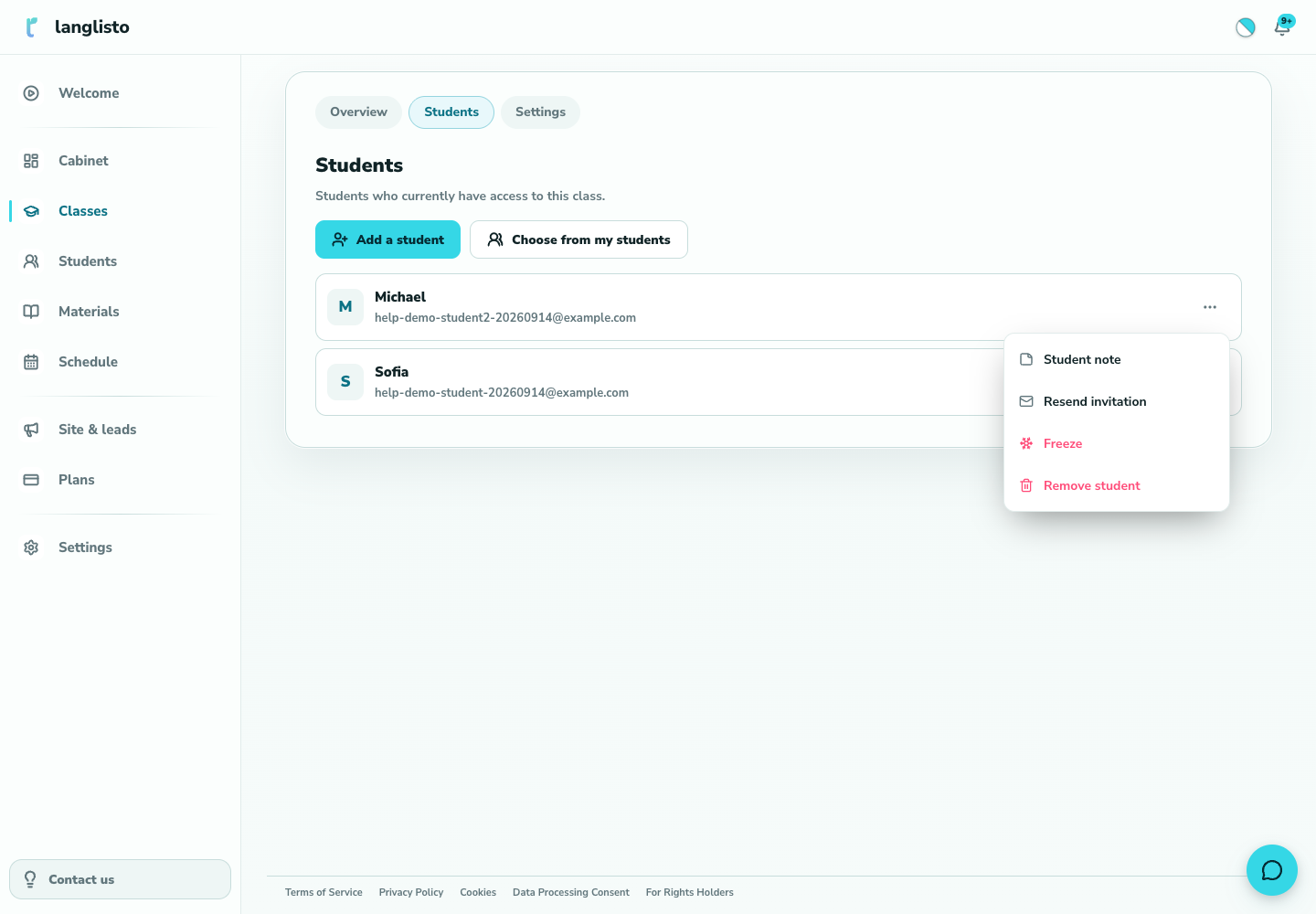
1. Open the student menu Issue sign-in details
Login details lets you generate a new password (shown once — copy it right away) or get a permanent sign-in link that works without a password. Issuing the link does not change the student's current password or open sessions.
Resend the invitation
Send invitation emails the student a fresh message with a sign-in link.
Freeze or restore access
Freeze closes the student's access to the class while keeping all progress. A frozen student shows a Frozen label and a Reactivate button — click it to give access back.
Remove the student from the class
Remove student takes them out of the class after confirmation. Use it when you do not plan to restore access.
Good to know
Troubleshooting
A student says they see “Access closed”
Check their row in the Students list. If it shows Frozen, click Reactivate. If the student is not in the list, add them again via Add a student or Choose from my students.