For teachers
How to create a class
You create a class from the Classes section in two steps: pick the class type, then fill in a name and optional fields. The new class opens right away.
On this page
How to do it
Open the Classes section
In Classes, click New class (on the class strip the button reads Add class).
Pick the class type
The Choose class type window offers three options: Individual — a personal class for one-on-one lessons; Group — a group of students with a shared schedule and materials; Marathon — a self-paced course where lessons unlock on a set schedule.
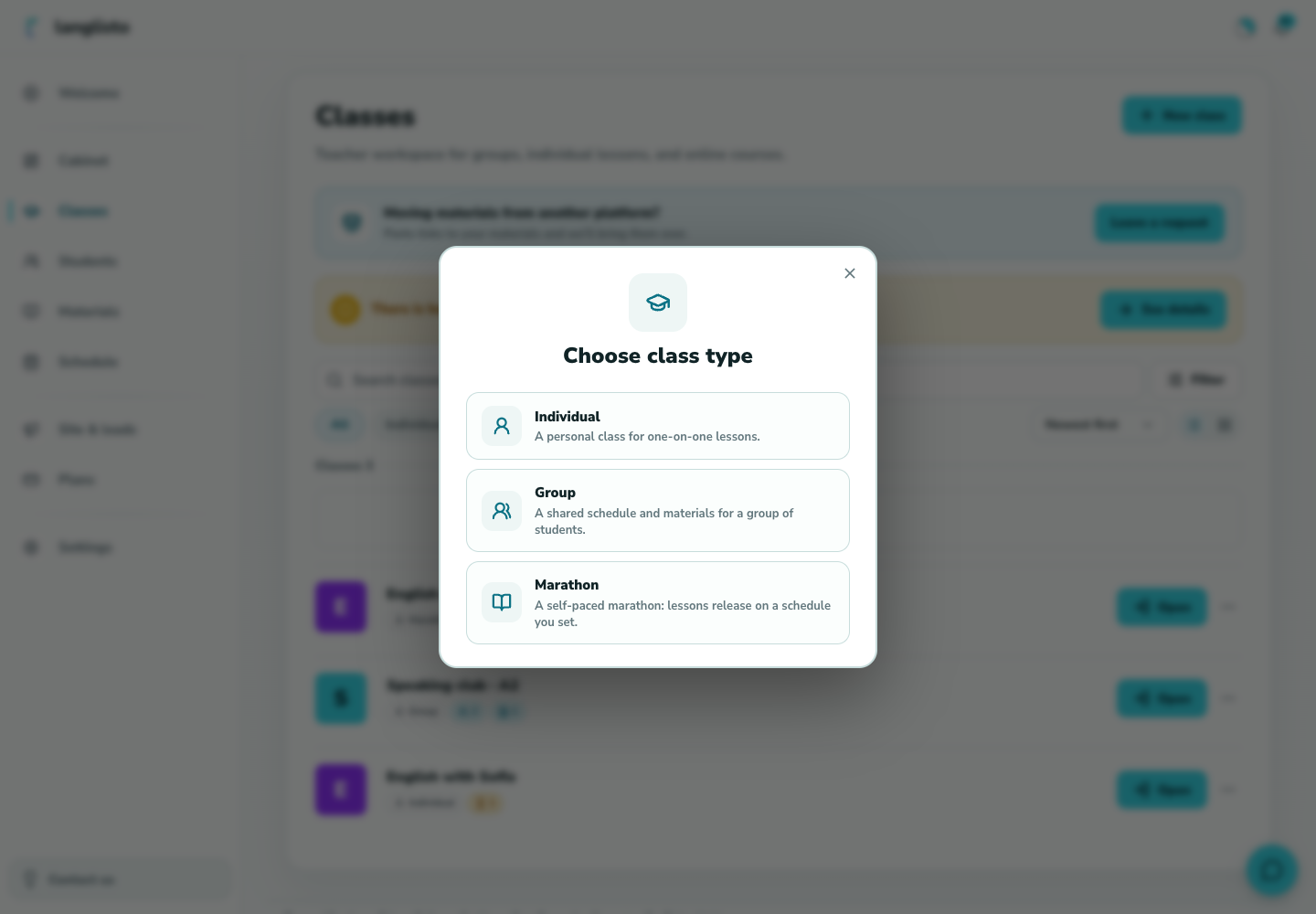
2. Pick the class type Fill in the class card
Enter a name such as English A1. Optionally add a cover, a taught language, and a folder. Creating a school class may also require selecting its teacher.
Click Create
The class appears in the list. You can prepare a lesson and add students when you are ready.
Good to know
Troubleshooting
I click Create but see the error “Enter a class name”
The Name field is empty or contains only spaces. Type a name and click Create again. The Back button returns you to the type picker if you chose the wrong type.