For teachers
How to create an exercise in a lesson
Exercises live inside a lesson, and a lesson lives inside a material. You pick a lesson section, click “Add an exercise”, choose a template in the gallery and fill it in the editor.
On this page
How to do it
Open a lesson of your material
In Materials open your material and pick a lesson on the Contents tab. The lesson editor opens: sections on the right (Section 1, Section 2…), the current section's exercises in the middle.
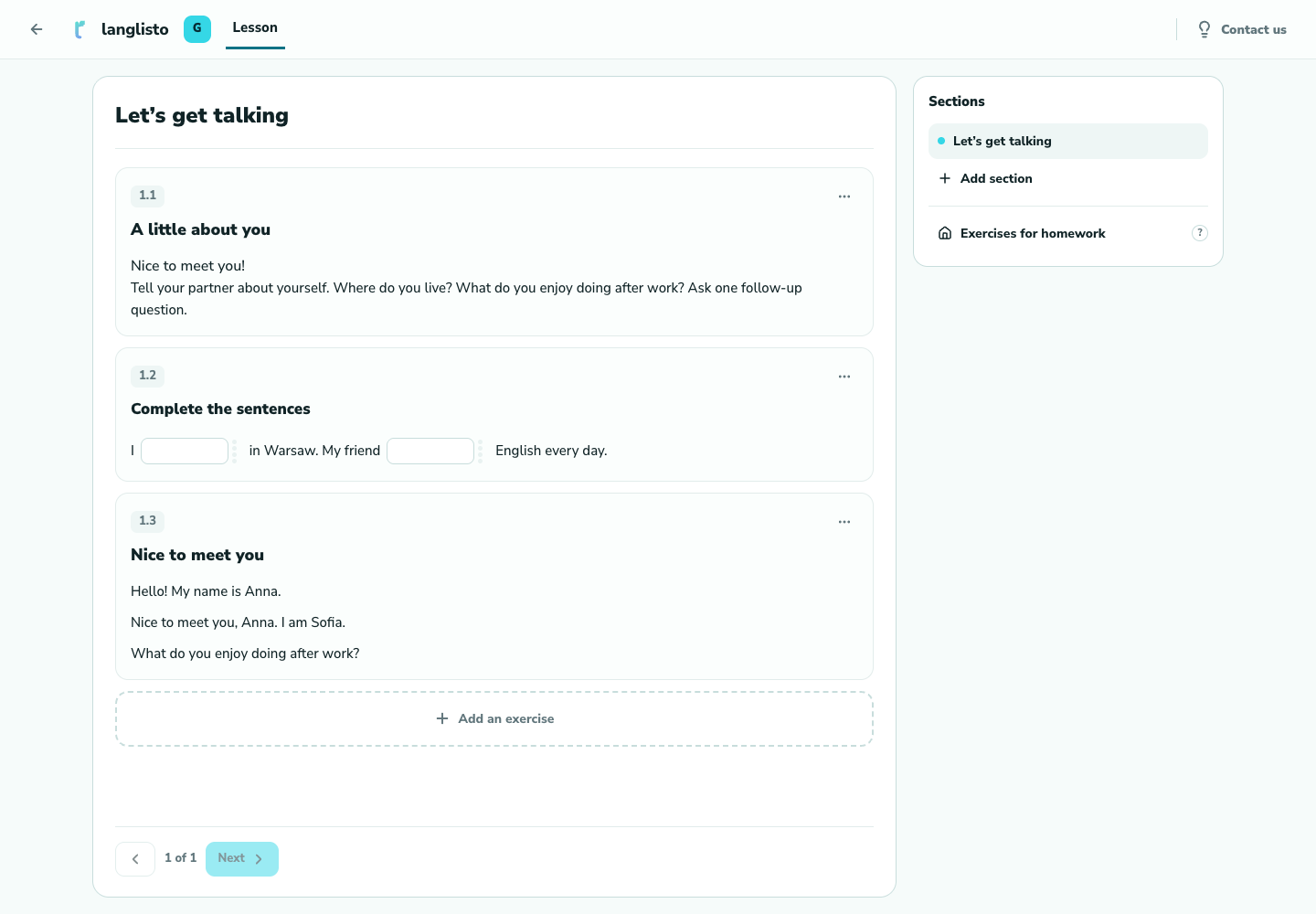
1. Open a lesson of your material Pick a section and click “Add an exercise”
Choose a section in the right panel and click Add an exercise below its content. Plus icons between exercises let you insert a task at a particular position.
Choose a template in the gallery
The “Template Selection” screen opens. Templates are grouped: Words and gaps, Tests, Images, Audio and video, Words and pictures, Working with text, Arrange in the correct order, Other. Use “Search by name” or the “My usual ones” shelf for favourites.
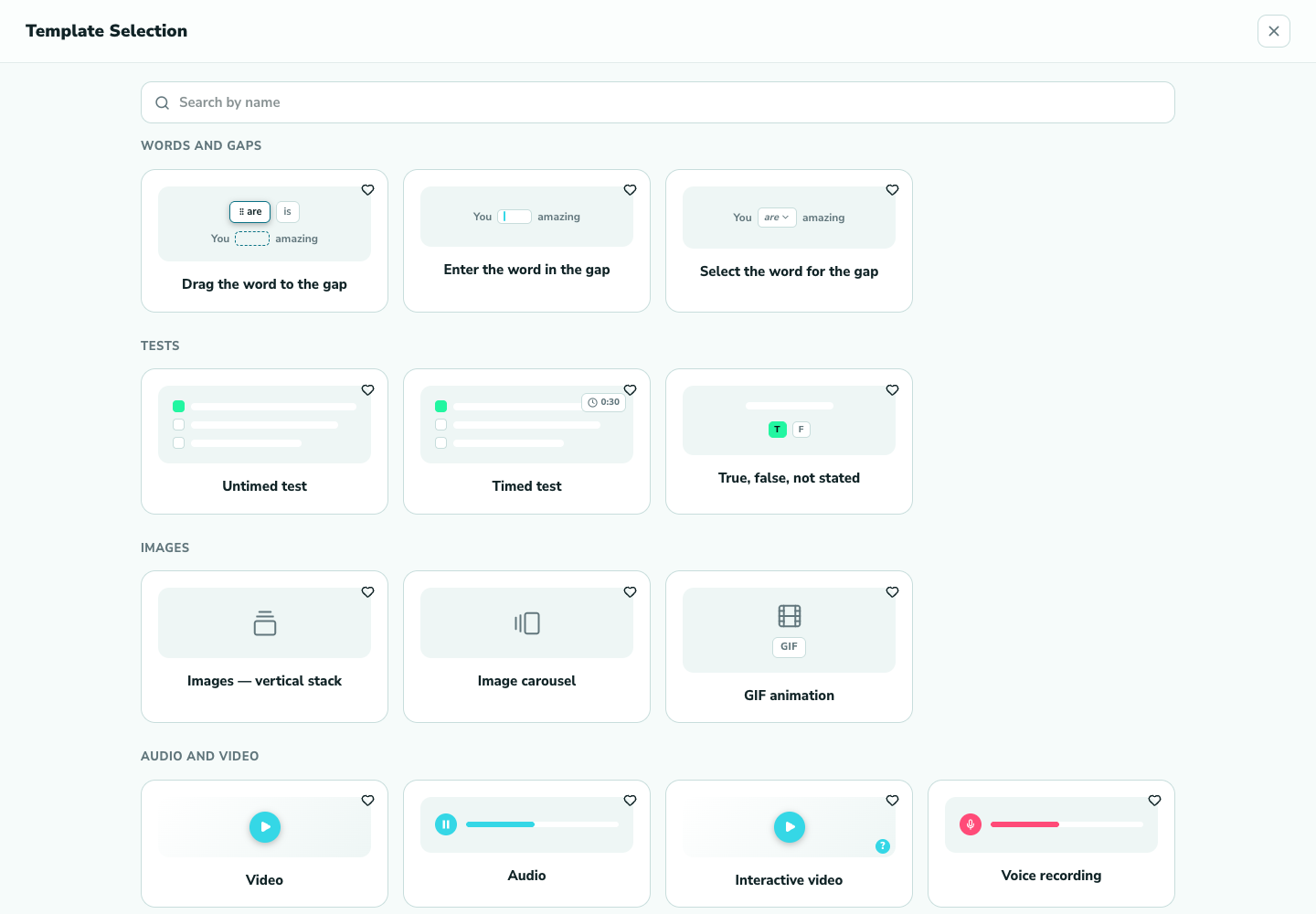
3. Choose a template in the gallery Fill in the exercise
After picking a template the editor for that type opens: “Enter the word in the gap” asks for text with gaps, “True, false, not stated” asks for statements. Fill in the fields and save. Back in the lesson you land on the exercise you just created.
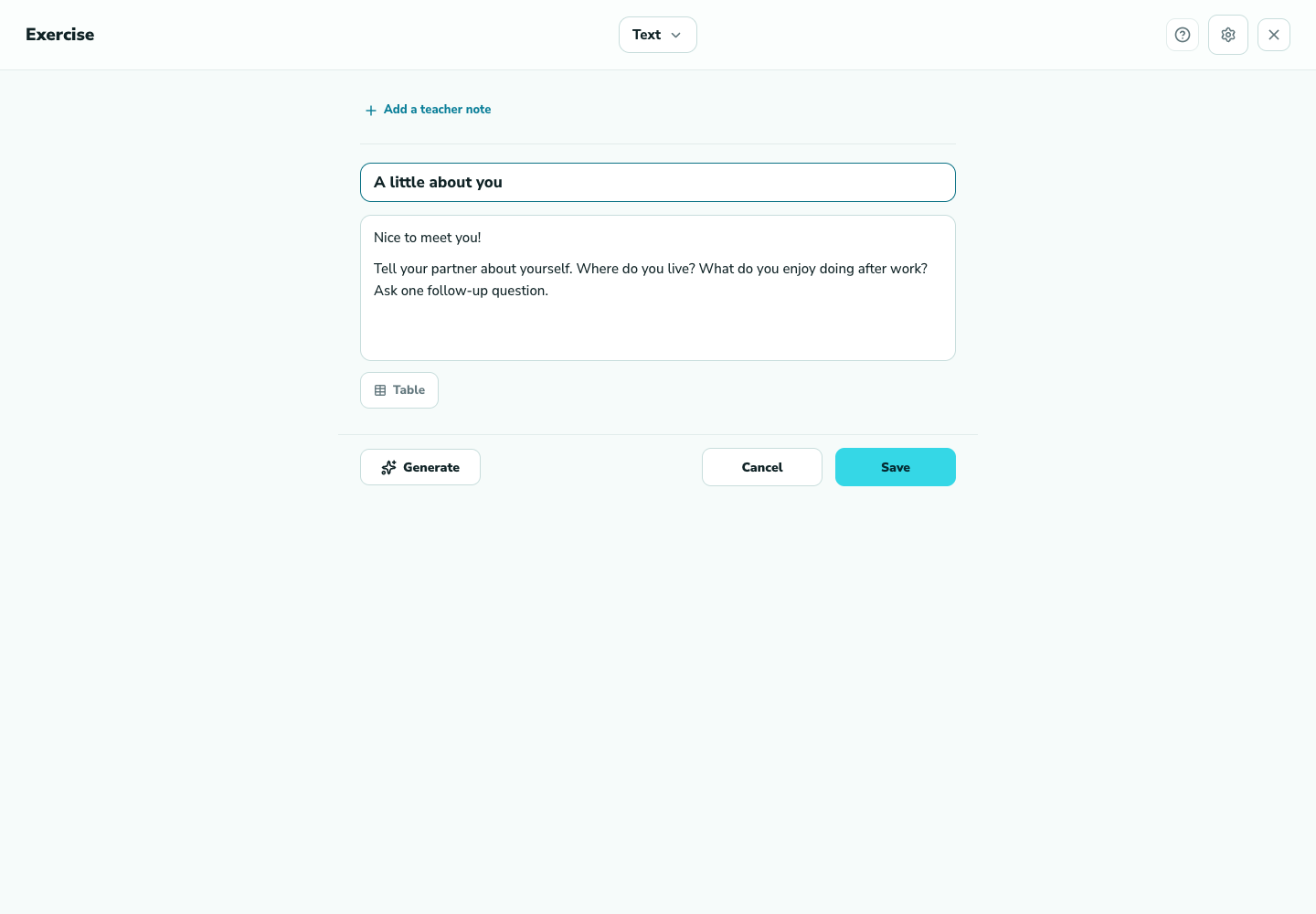
4. Fill in the exercise Adjust order and settings
Review the task inside the lesson. Its actions menu lets you reopen the editor and correct the content. If you change the exercise type, check the result before saving.
Good to know
Troubleshooting
Some templates in the gallery are disabled
Check the unavailable template’s explanation and the taught language in the material settings. Language tools need a suitable language selected. Contact support if the reason is unclear.
I can't find the template I need
Type a word into “Search by name” — it searches all groups at once. If you see “Nothing found”, try another word such as “gap” or “test”.