For school owners and staff
The school materials shelf
How to publish your own material for every teacher in the school, where to find it, and how to take it off the shelf.
On this page
How to do it
Open the “School” tab in Materials
The school shelf lives in the “Materials” section, not in the School section. The “School” tab appears only for school staff who may use the shelf; a tutor without a school does not see it.
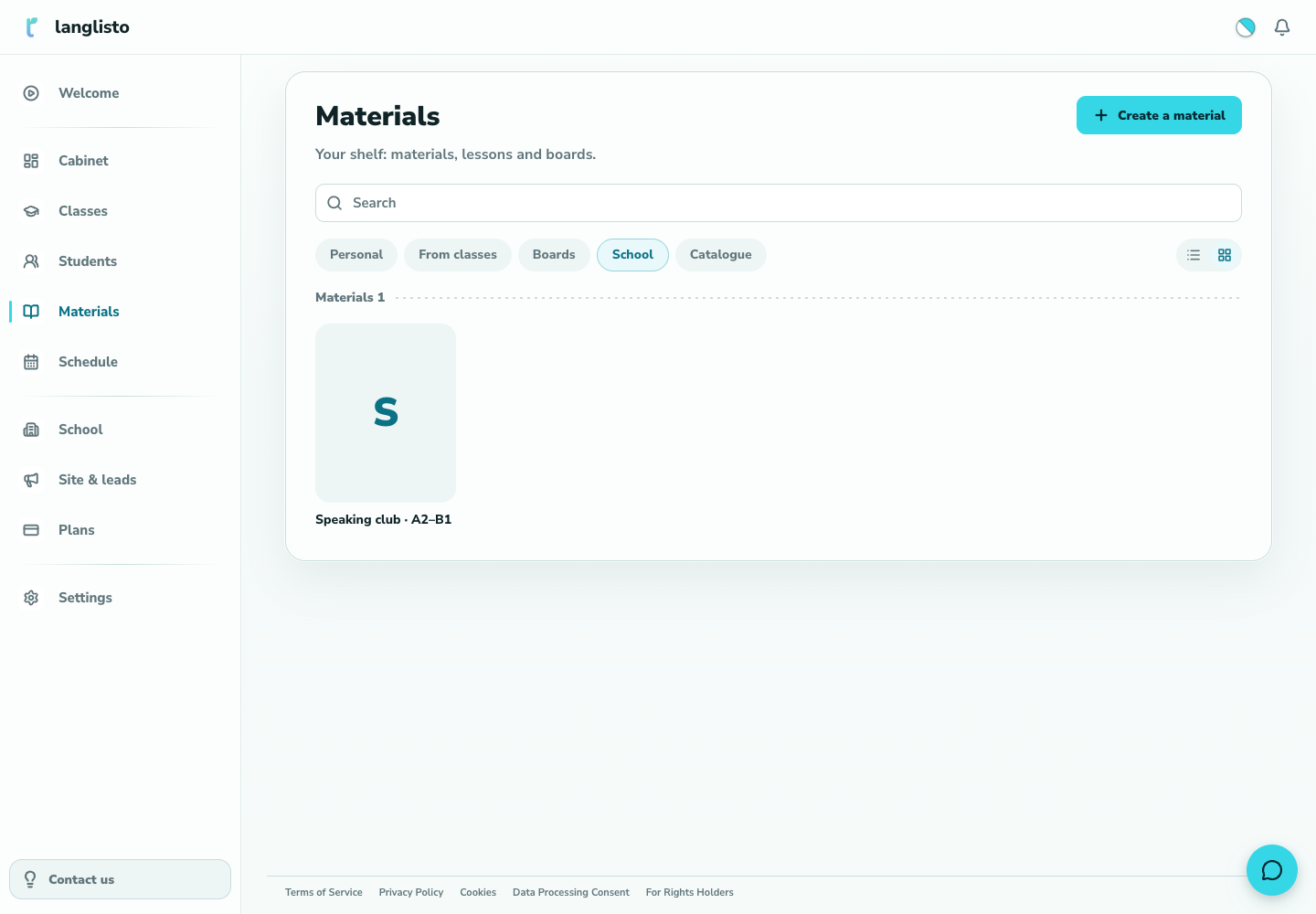
1. Open the “School” tab in Materials Put your material on the shelf
Open your own material and choose “Publish to school” in the “…” menu. You will see “The material is on the school shelf — your colleagues will see it”. The item appears only for people allowed to publish, and only on their own materials.
Remove it when needed
For a material already on the shelf the same menu shows “Remove from school”. After pressing it you see “The material is off the school shelf”.
Search the shelf
The search box above the tabs searches by title. The shelf loads in pages: a pager appears at the bottom when there is more than one page.
Good to know
Troubleshooting
There is no “Publish to school” item in the “…” menu.
The item shows only on your own material and only if you have permission to publish to the shelf. Someone else's material cannot be published — the server rejects it.
A teacher cannot see the “School” tab in Materials.
The tab exists only for school staff with permission to use the shelf. Check that the person is added to the school and review their permissions on the “Roles & permissions” tab.