For school owners and staff
The School section: where to start
What lives in the School section, which tabs the owner sees, and where to find the school's classes, timetable and materials.
On this page
How to do it
Open the School section
The School item in the sidebar opens the school page. The heading shows your school’s name with the line “Who works here, what each role may do, and how the school looks from outside”.
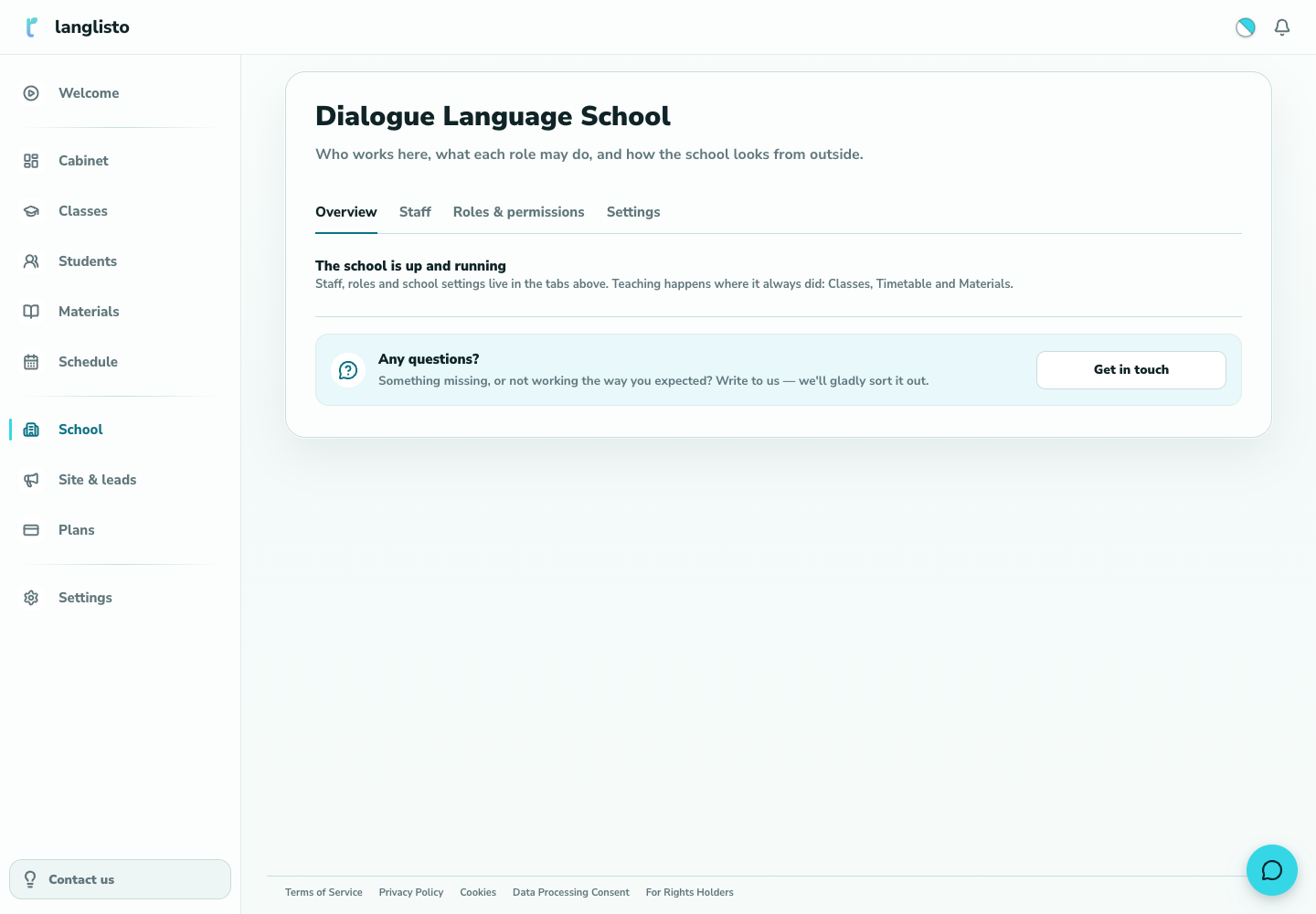
1. Open the School section Check the tabs
The owner sees four tabs: “Overview”, “Staff”, “Roles & permissions”, “Settings”. For staff the set of tabs depends on their granted permissions, not on the role name, so it can change after you edit permissions.
Check your team’s access
In “Roles & permissions”, review who can manage staff, classes, and other sections. School settings have their own tab. If an action is missing, check the staff member’s permissions first.
Find classes and materials in the usual sections
The School section has no Classes, Timetable or Materials of its own. They stay in the regular sidebar items. A staff member who may view all classes sees the school's classes on the ordinary “Classes” page.
Good to know
Troubleshooting
Instead of tabs I see “School is switched off”. What does it mean?
The school is paused. The page says “Classes carry on with their teachers. Message us to switch it back on”. Contact support — the school cannot be switched back on from the interface.
A teacher has no “School” item in the menu. Is that a bug?
No. The item appears only for people with permissions over staff, class reassignment, roles or school settings. Teachers and methodists without those permissions keep working in the regular sections as before.