For school owners and staff
Staff: invite by email or create an account
How to add a staff member: invite them by email or create an account.
On this page
How to do it
Open the “Staff” tab
In the School section open the “Staff” tab and press “Add staff member”. While you are alone the list says “It's just you so far”.
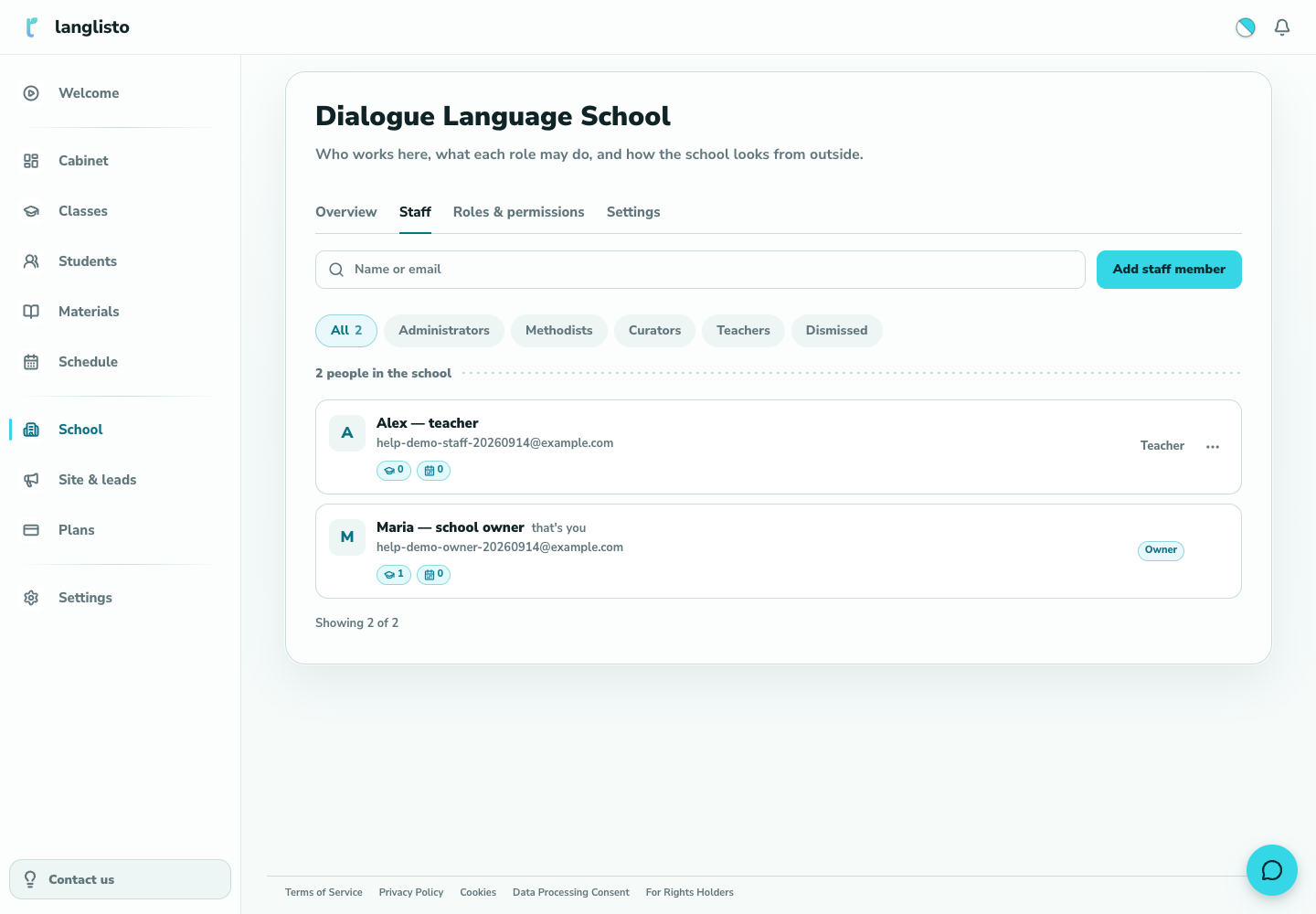
1. Open the “Staff” tab Pick the method
The “Add staff member” dialog offers two switches: “Invite by email” and “Create account”. The note reads “Two ways — the school picks”.
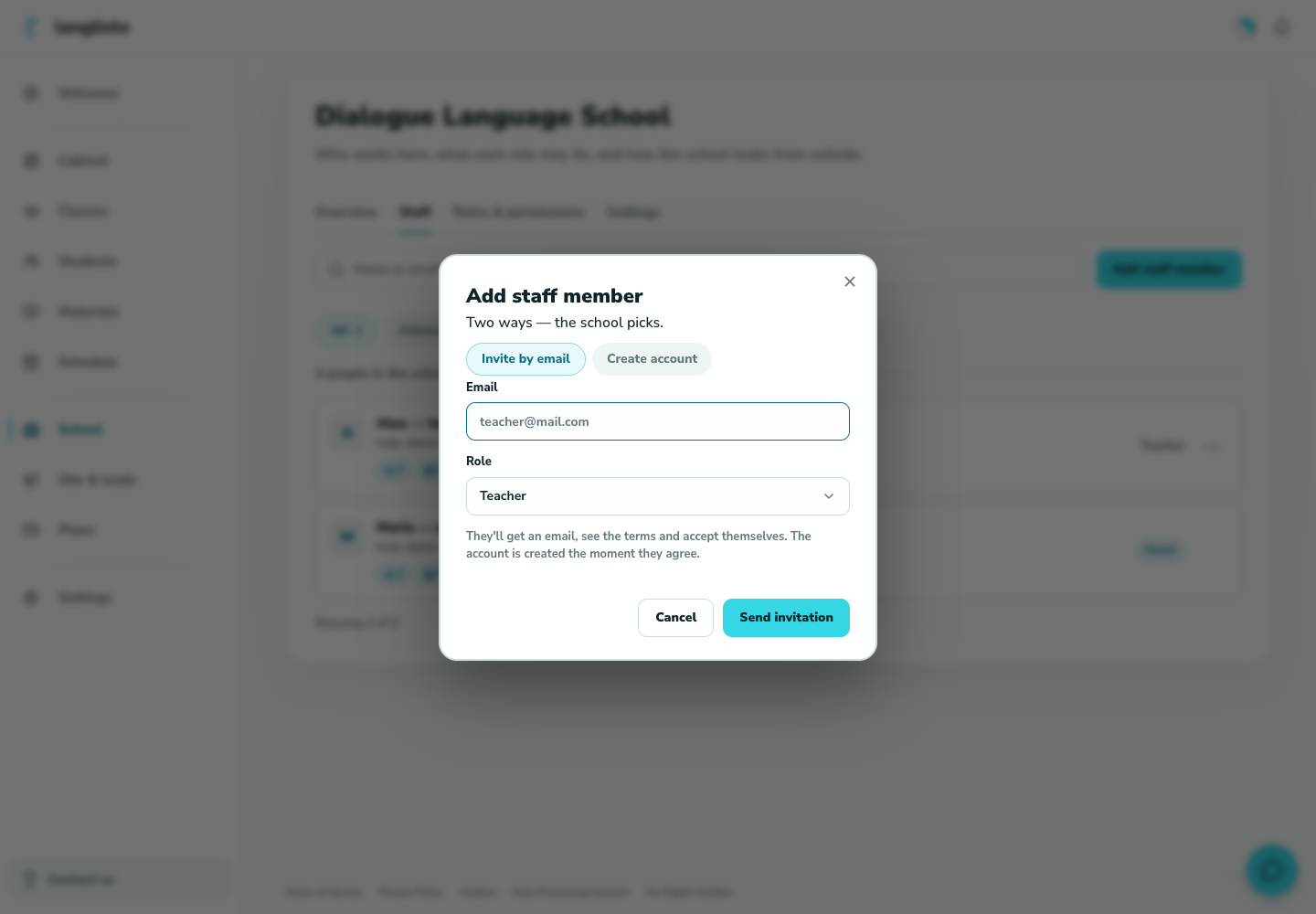
2. Pick the method Invite by email
Fill in “Email”, choose a “Role” (Administrator, Methodist, Curator or Teacher — Owner cannot be assigned) and press “Send invitation”. The dialog states: “They'll get an email, see the terms and accept themselves. The account is created the moment they agree”.
Create an account
Fill in “Name”, “Email (login)”, “Role” and press “Create account”. An “Account created” panel shows the login and password: “Shown once. Copy it and hand it to the staff member”. No email is sent — use “Copy”, then “Done”.
Work with the list
Above the list there is a “Name or email” search and the filters “All” and “Dismissed”.
Good to know
Troubleshooting
I closed “Account created” without copying the password.
The interface shows the password once and never again. Ask support how to issue the staff member a new password.
I sent an invitation but the person is not in the list.
With an email invitation the account is created only when the person accepts the terms themselves. Until then they do not appear — ask them to check their inbox and accept.