For teachers
Teacher cabinet: Today, review and progress
The cabinet gathers your current work on four tabs: Today, Review, Subscriptions and Progress. Here is how to read the day's plan, work through the review queue, keep lesson subscriptions if you want to, and see what students did in a chosen period.
On this page
How to do it
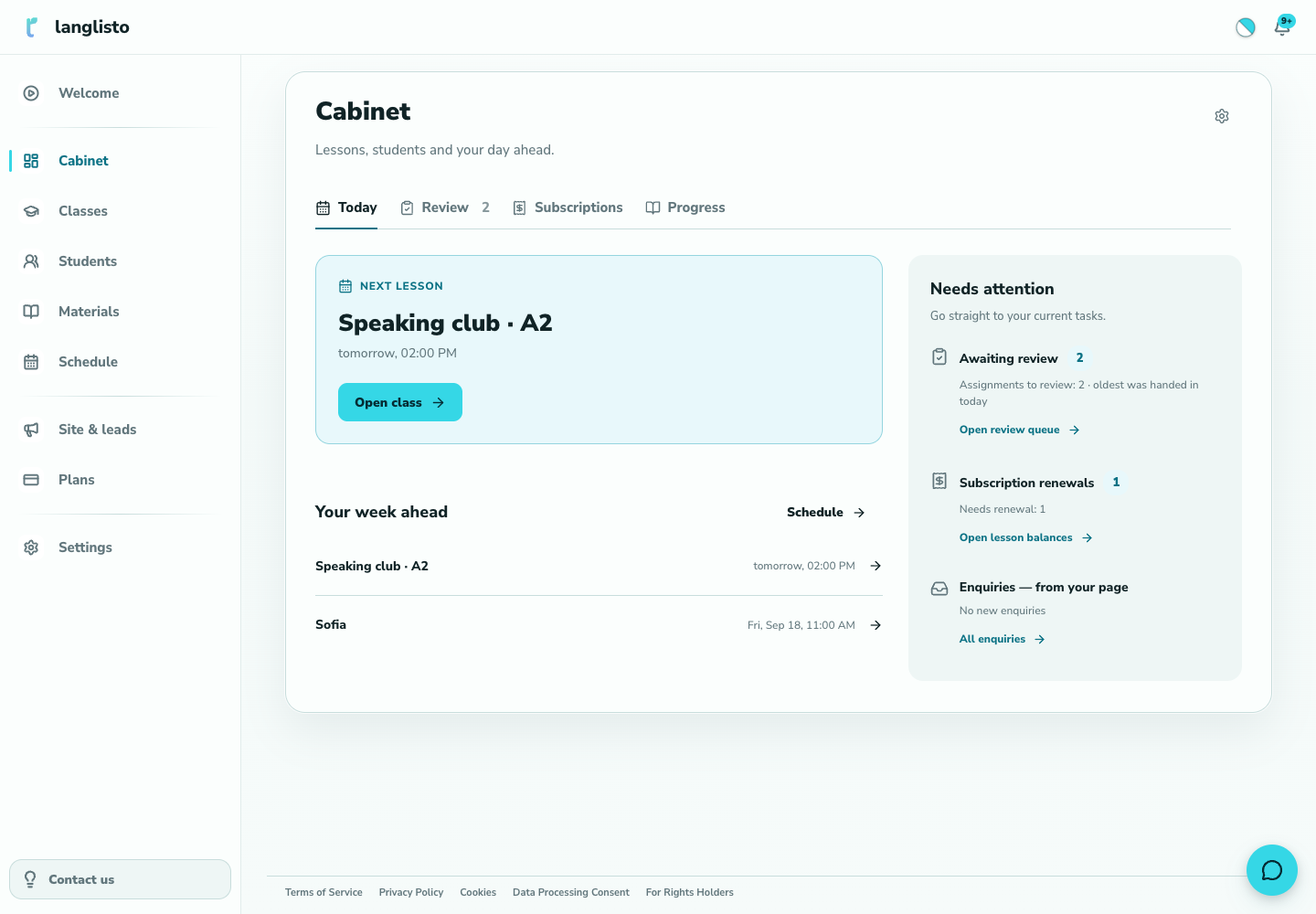
See what comes next on the Today tab
At the top is Next lesson: the class, the time (today, tomorrow or a date) and the Open class button. Below it is Your week ahead with a Schedule link: lessons that are already over are not shown, and if there are more than seven a More lessons link appears. If there are no lessons in the next seven days, neither block is shown; instead you see a single No lessons this week message with the hint Book one in the schedule and it will show up here and a Schedule button. On the right is the Needs attention block with quick links to current tasks.
1. See what comes next on the Today tab Work through homework waiting for review
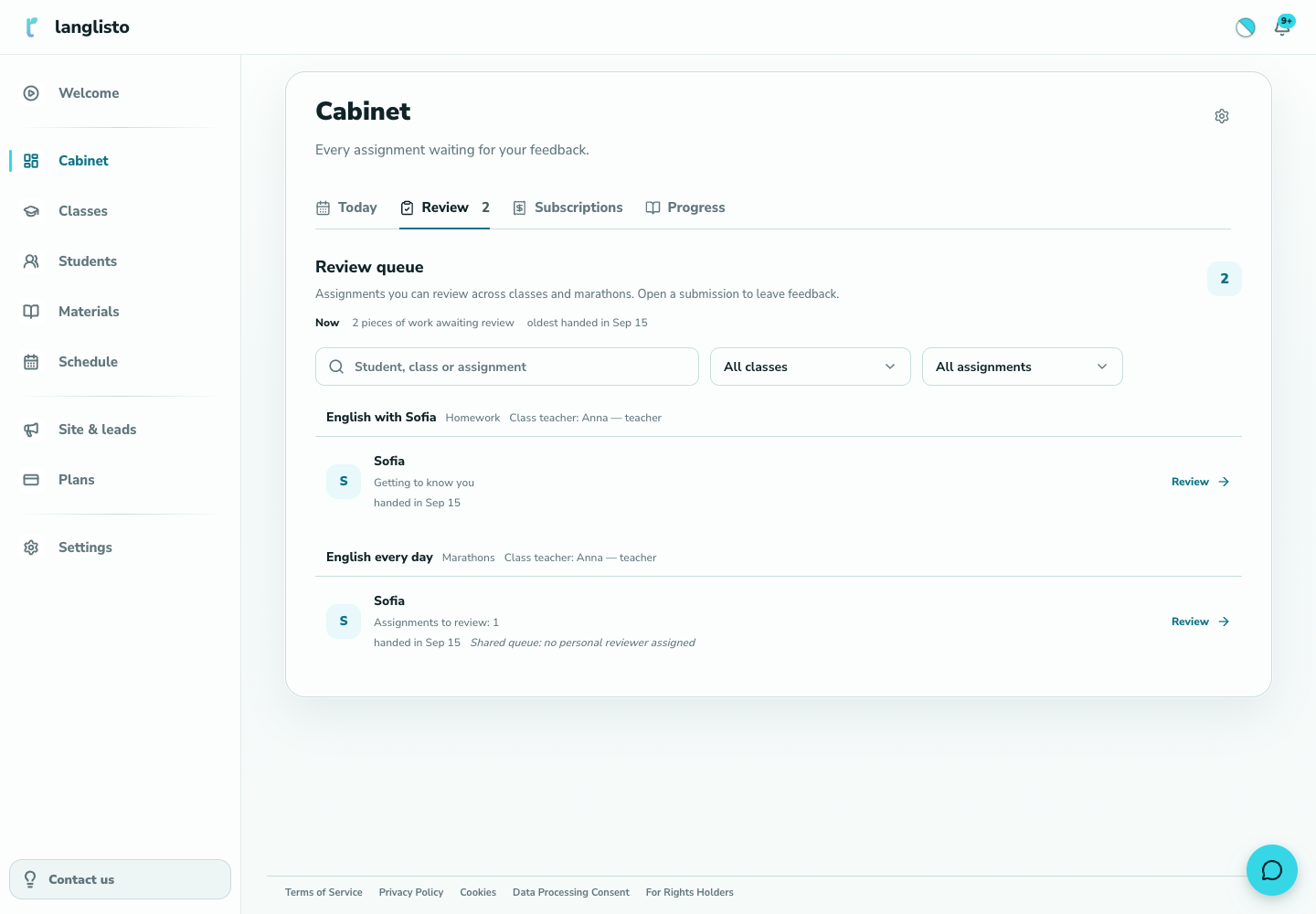
In Needs attention, the Waiting for review item shows how many submitted works there are and a Go to review link. It opens the Review tab: a queue holding only submitted, not yet reviewed work from your classes and marathons. There is a search by student, class or task, a class filter and a work type filter (Homework or Marathons). Click Review next to a work; once you answer, it leaves the queue. When everything is done the cabinet says Nothing to review. The Now summary shows how many pieces of work are awaiting review and how long the oldest has waited; each work shows when it was handed in and how many days it has been waiting. In a school, a Class teacher filter is added, and each piece of marathon work shows who reviews it or Shared queue: no personal reviewer assigned.
2. Work through homework waiting for review Turn on subscription tracking if you need it
The Subscriptions tab is optional. While tracking is off, Today shows Subscription tracking is off; you turn it on and create tariffs on the Tariffs and rules tab inside Subscriptions. Once it is on, the Renewals item shows how many students need to renew, and the Go to lesson balances link opens the list with the Needs renewal filter already applied. The subscription status filter can be switched to All subscriptions, Lessons ran out or No tariff. The gear icon in the cabinet header hides or shows sections.
Choose a period on the Progress tab
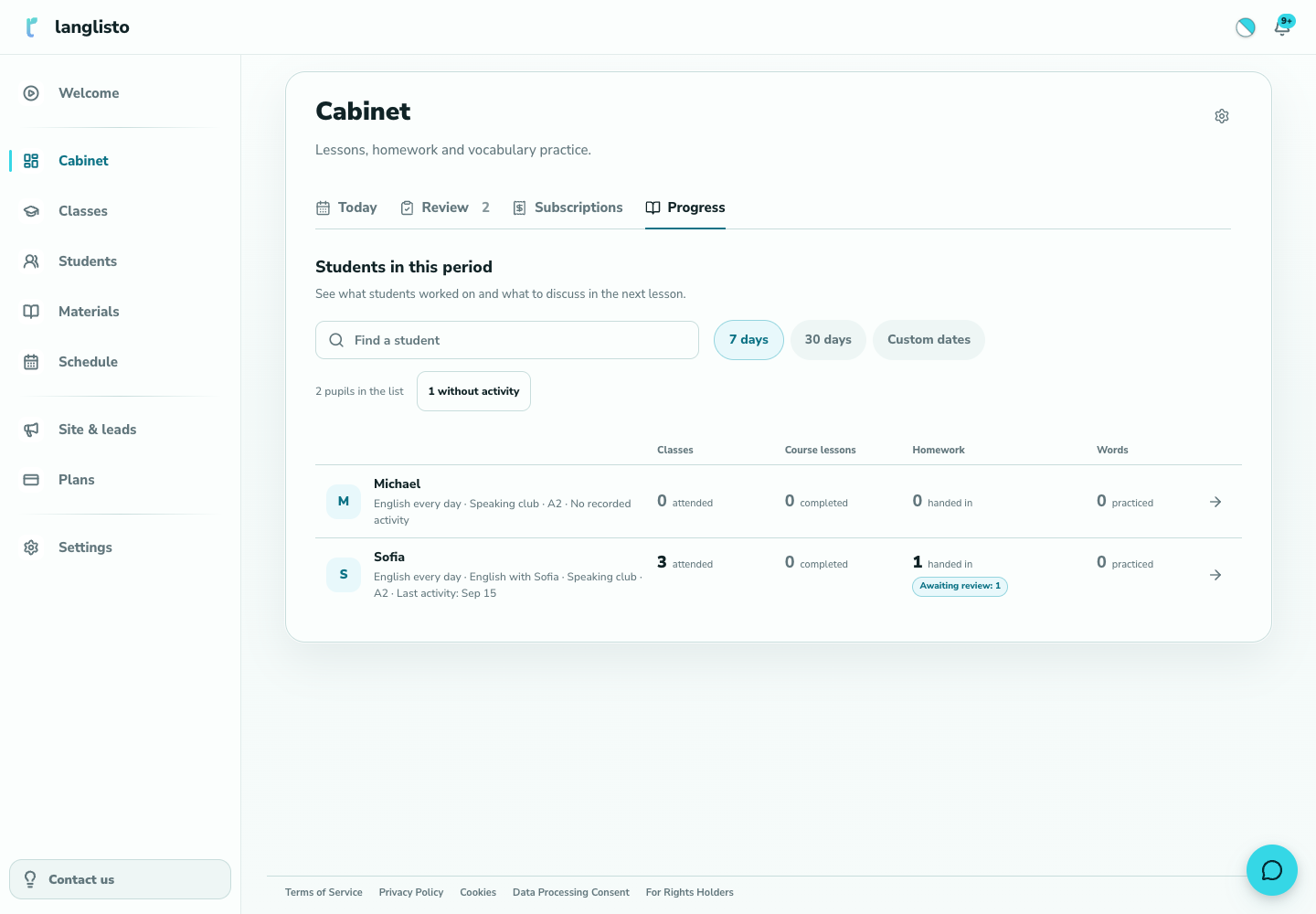
The Progress tab shows Students in this period. The Report period control offers 7 days, 30 days or Custom dates; both dates are required and the start must not be after the end. The period is written into the page address, so you can come back to it later. Each student has four measures: Lessons (attended), Course lessons (passed), Homework (handed in) and Words (practised). The Pending and Revision badges show where you are needed. The Find a student field narrows the list. Under the filters is a line with the number of pupils in the list and a button showing how many are without activity: click it to keep only pupils with no recorded activity in the period, and Show all brings the full list back. In a school with several teachers a Filter by teacher appears, and each row lists the Teachers of the pupil's classes.
4. Choose a period on the Progress tab Open a student's learning report
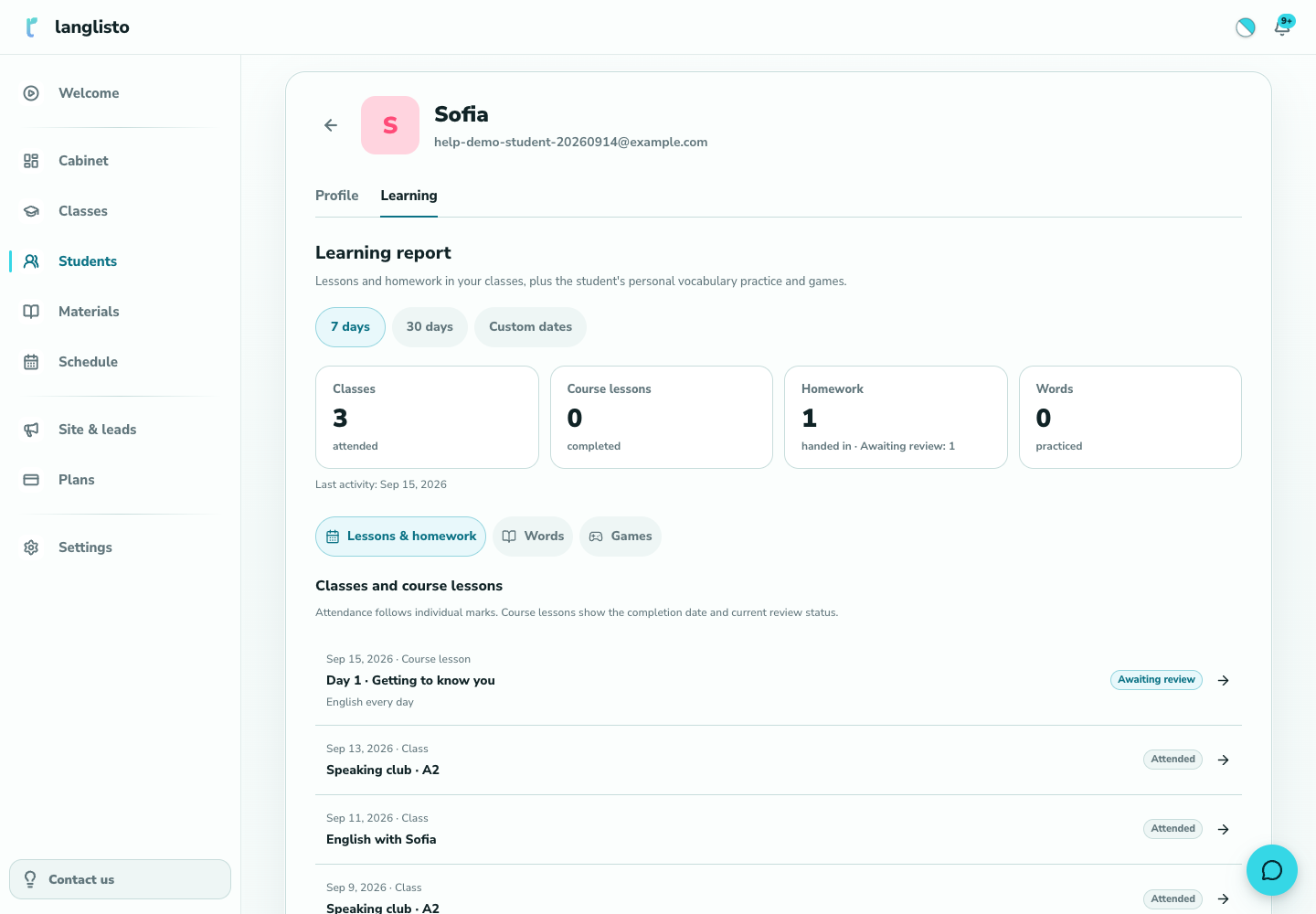
Click a student's row to open the Learning report for the same period. Totals are at the top, with a section switch below. Lessons & homework shows Classes and course lessons and homework with the statuses To do, Awaiting review and Reviewed. Words shows the Vocabulary now block, which does not depend on the period, and Vocabulary practice. Games shows Completed games: click a game to open Attempt details, where each word shows the answer, the number of attempts and hints, and for mistakes what was expected. The Back to student progress link returns you to the table.
5. Open a student's learning report
Good to know
Troubleshooting
Today is empty although I have lessons
The cabinet shows only scheduled lessons in the next seven days that have not ended yet. Check that the lesson is set in Schedule. If the schedule is in place but the tab did not load, click Refresh.
A student submitted work but it is not in the queue
Work enters the queue only after the student clicks Submit. Check that All classes and All works are selected and clear the search. If the work is already reviewed, it has left the queue; you can see it in the student's report.
A student shows zeros or dashes in Progress
First widen the period, for example to 30 days or Custom dates. Zeros for a period are normal if the student did not work on the platform. A dash means the measure does not apply to this student. If in doubt, write to support and we will look together.
A student exists but is not shown in Progress
Check whether the without activity button is pressed; Show all brings the full list back. In a school, reset the teacher filter: on an outdated link the cabinet says The selected teacher is not in the current list and offers Reset teacher filter.
I cannot see the Subscriptions tab or balances
The section may be hidden with the gear icon in the cabinet header, or subscription tracking is off. In a school, viewing balances depends on permissions; then you see Balances are available by school permissions.