For teachers
Transfer materials from another platform
Transfer your materials automatically from their share links. Submit a request from Welcome or Settings, then track progress on the Data transfer tab.
On this page
How to do it
Open the transfer form
On Welcome, choose Transfer materials. The Request a material transfer window opens. The same form is available in Settings under Data transfer.
Paste your share links
Open a material on your platform, copy its share link and paste it into the field, one link per line. The link must allow copying.
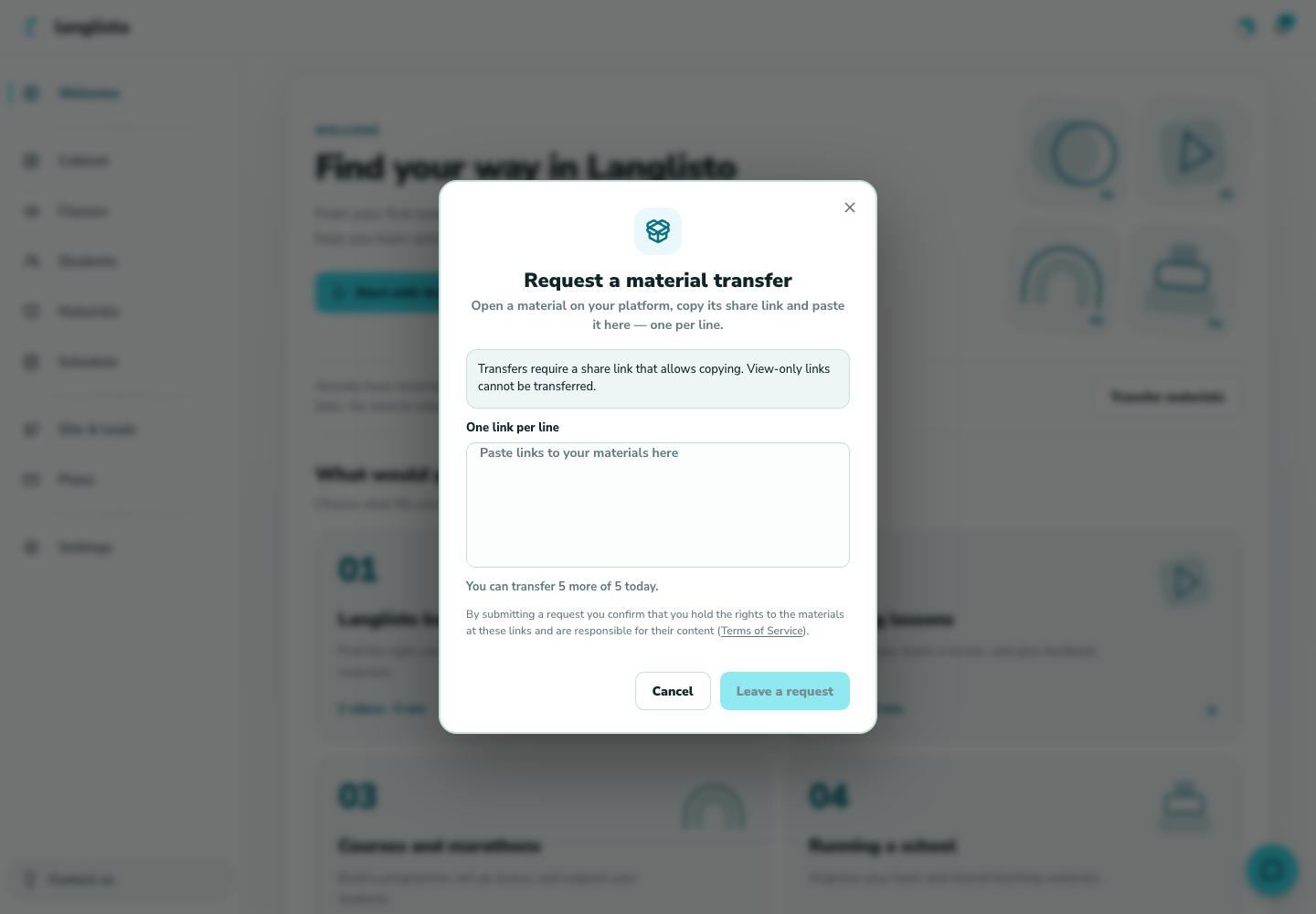
2. Paste your share links Leave a request
Check the daily limit line and choose Leave a request. By submitting you confirm that you hold the rights to the materials.
Track the transfer
Track the transfer in Settings on the Data transfer tab. Finished materials appear in your personal library.
Good to know
Troubleshooting
The form says it couldn't load transfer details. What should I do?
This is a loading error. Choose Try again. If it keeps failing, contact support using the in-app button.
The form says automatic transfer is currently unavailable. What should I do?
The transfer service is temporarily switched off, and there is no Try again button in this state. Contact support and we'll tell you when transfers are back and how to add materials in the meantime.
After submitting, I see that automatic transfer is unavailable for these links
This link format is not supported yet, so a support window opens. Describe what you want to move, or add the materials manually. Do the same if a transfer failed on the Data transfer tab: contact support and include the links from your request.
Leave a request is disabled or the form says I've used up my limit
Wait for the form to finish loading and paste at least one link. If your limit is used up, submit the remaining links the next day. View-only links cannot be transferred: enable copying on the source platform.