For teachers
How to reuse a material
You create a material once. Its lessons are added to classes as a link to the shared material or as a copy, opened right in a live class, and lessons and exercises are copied between materials. Here are the main ways.
On this page
How to do it
Click “Add a lesson” on the class page
On the class page, for example a marathon, open Lessons and click Add a lesson. The window offers two options: pick a lesson from your materials library or create a new lesson right in the class.
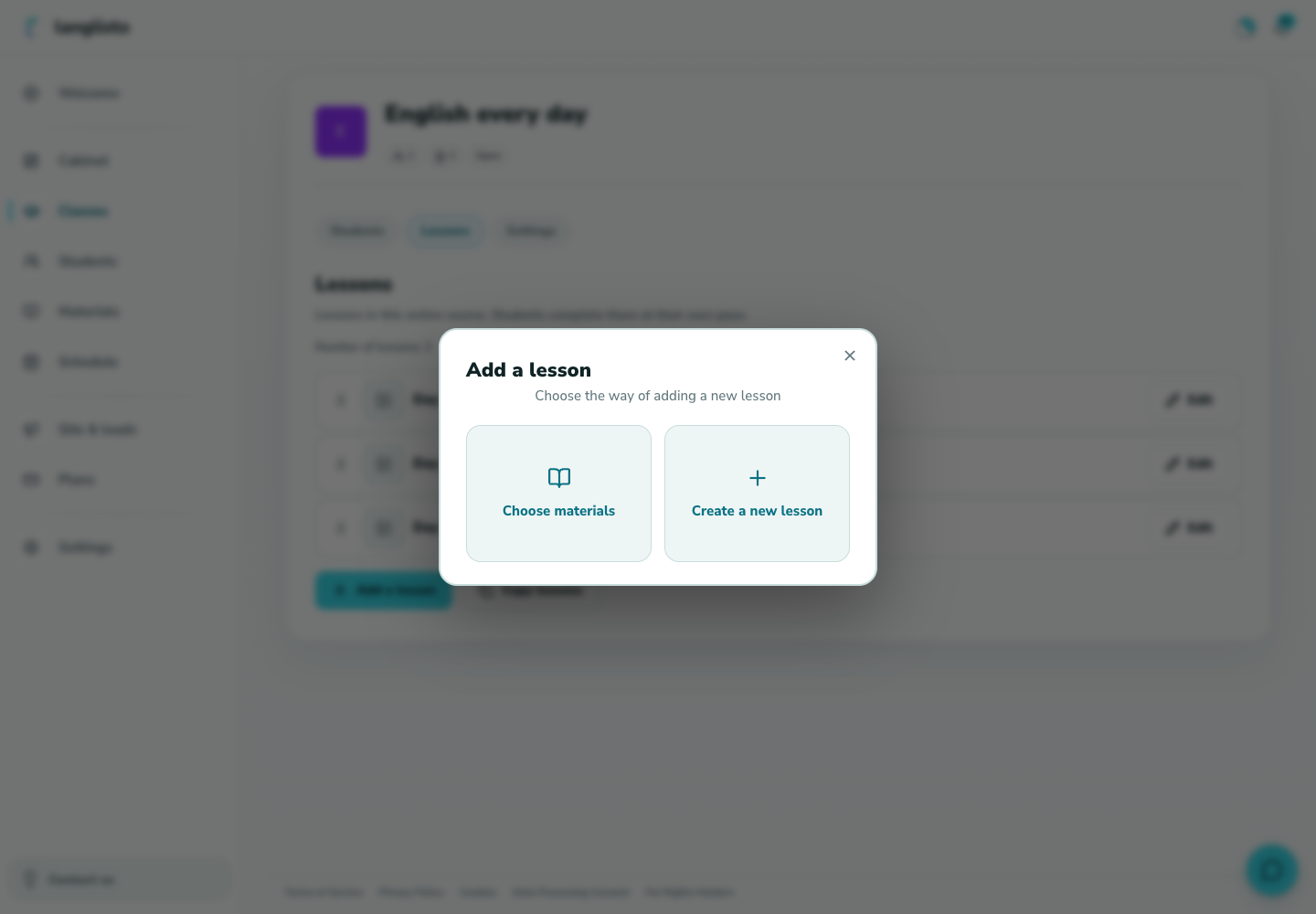
1. Click “Add a lesson” on the class page Choose a material: personal or from the catalogue
The “Select a material” window has two tabs: Personal for your own materials and Catalogue for ready-made content. Open the material you need. Back returns you to the choice of method.
Tick the lessons and choose how to add them
Tick the lessons you need: there is a search, Select all and select-all-found. For a personal material choose the mode. Link keeps the lesson part of the shared material, so edits in the source are reflected in the class. Copy adds a separate instance of the lesson to the class instead of a link. Catalogue lessons are added as a link only: a hint is shown instead of the switch. Click Add.
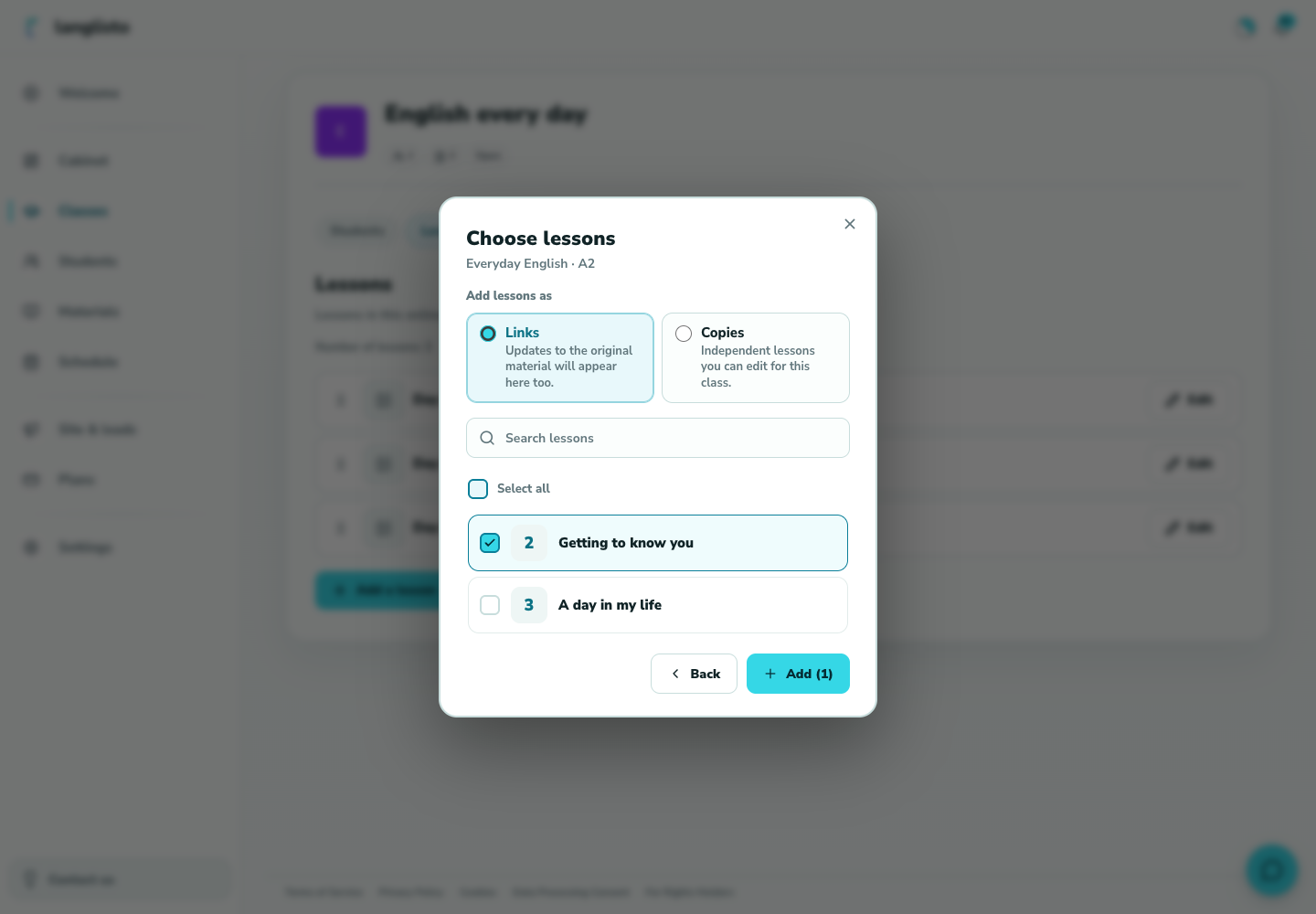
3. Tick the lessons and choose how to add them Use a material in a live class
In an individual or group class room, click Change unit. The back arrow above its lesson list opens the library. Choose a material and lesson. It first opens for preview; Add to class keeps it in the class, while Pin this lesson selects it for teaching.
Copy lessons and exercises between materials
On the material page, Copy lessons moves the ticked lessons into another of your materials. In the lesson editor, an exercise's menu offers “Copy to section” and “Move to section”: the dialog opens on the current lesson's sections, and one step up you can choose another material and lesson. “Select the whole section” takes several tasks at once.
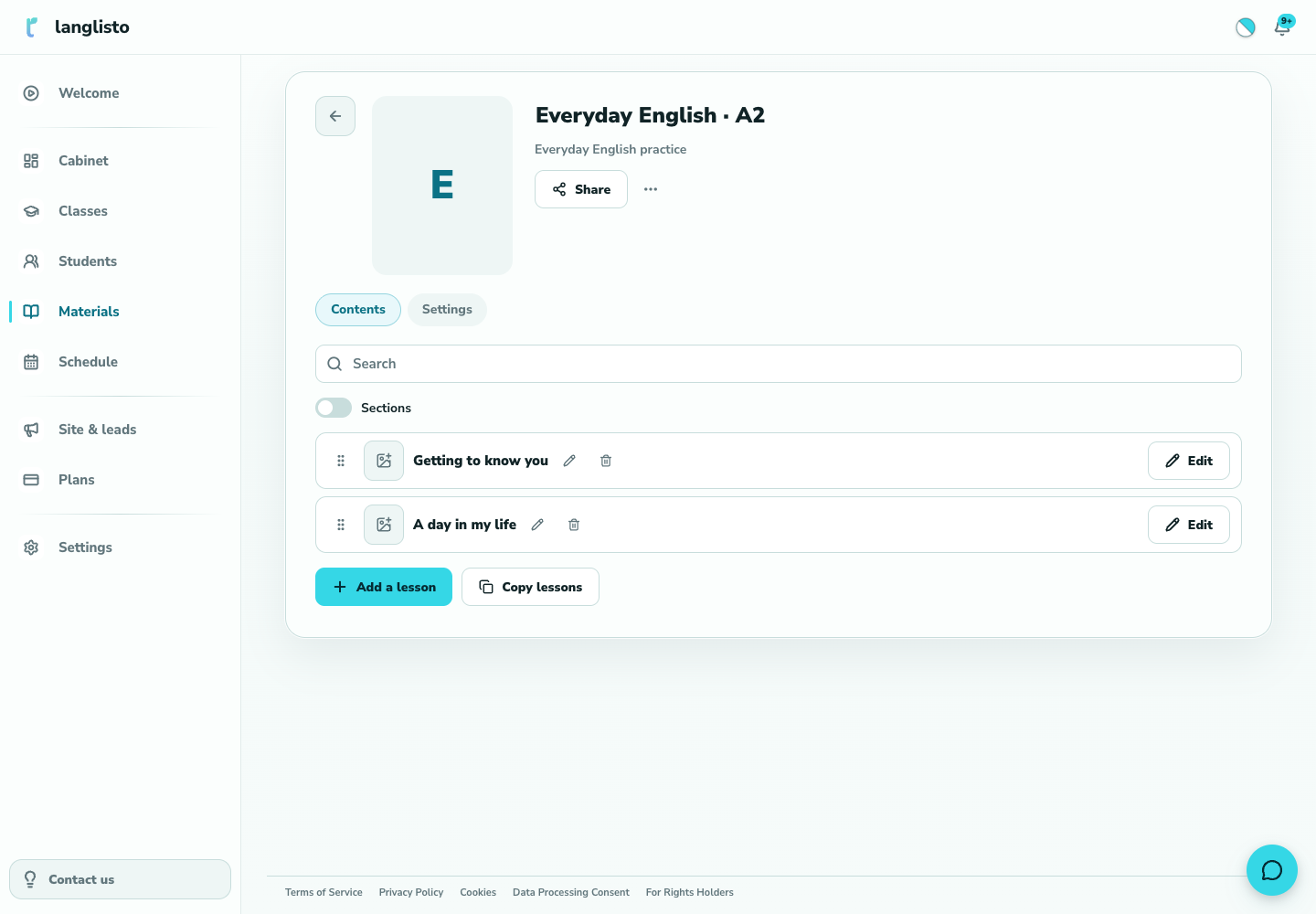
5. Copy lessons and exercises between materials
Good to know
Troubleshooting
The “Select a material” window is empty
The Personal tab lists only your own materials: if you have none yet, create a material and add lessons. Look for ready-made content on the Catalogue tab.
I don't see the Link / Copy switch
For catalogue materials there is no choice: they are added as a link only, so a hint is shown instead of the switch.
I got “Could not add lessons”
Click Add again. If the lesson list itself failed to load, the button turns into Retry. If the error repeats, tell support which material and lessons you were adding.