For teachers
How to invite a student to a class
Students are added on the class page in the Students block: by email, from your existing students, or with a shared sign-in link.
On this page
How to do it
Open the class and find the Students block
On the class page, open the Students tab. Below the student list you will see Add a student and Choose from my students.
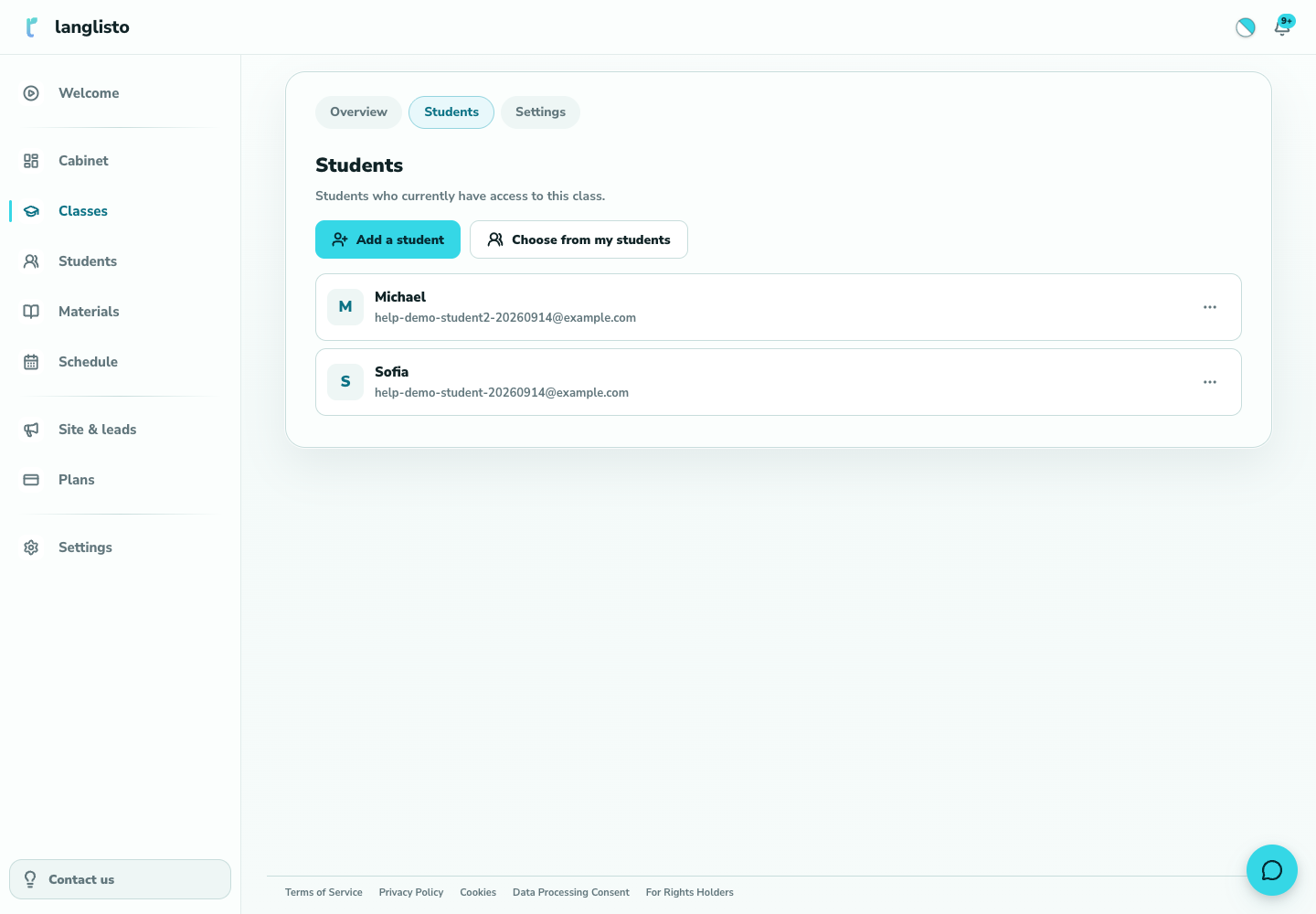
1. Open the class and find the Students block Add a student by email
Click Add a student and enter a name and email. If an account with that email already exists, it is attached to the class. If not, the platform creates a student account and emails an invitation with a sign-in link; you choose the email language in the same dialog.
Or pick from your students
Click Choose from my students to open the My students list with everyone you have added before. Find the person and click Add to class.
Or send the sign-in link
In the invite dialog switch to Entry link, turn on Join by link and copy the link. After signing in or registering, the class appears automatically in the student's Classes. The Where to go after signing in setting also applies to a link you already sent.
Good to know
Troubleshooting
A student opened the link and sees “This link is no longer active”
The link was replaced or joining by link was disabled. Open the invite dialog, make sure Join by link is on, and send the current link. If the student sees “You are signed in as a teacher”, they should click Sign in with another account and sign in as a student.