For teachers
How to create an exercise with AI
The editors of some templates have a “Generate with AI” button. You describe the task, optionally attach files, and the AI fills in the fields of this specific exercise. The result is a draft: you review it and save it yourself.
On this page
How to do it
Open the exercise editor and find the button
In a lesson of your material click Add an exercise, pick a template and open its editor. If generation is available for this type, the editor shows a “Generate” button. The exercise type is already set by the template: the AI fills only its fields.
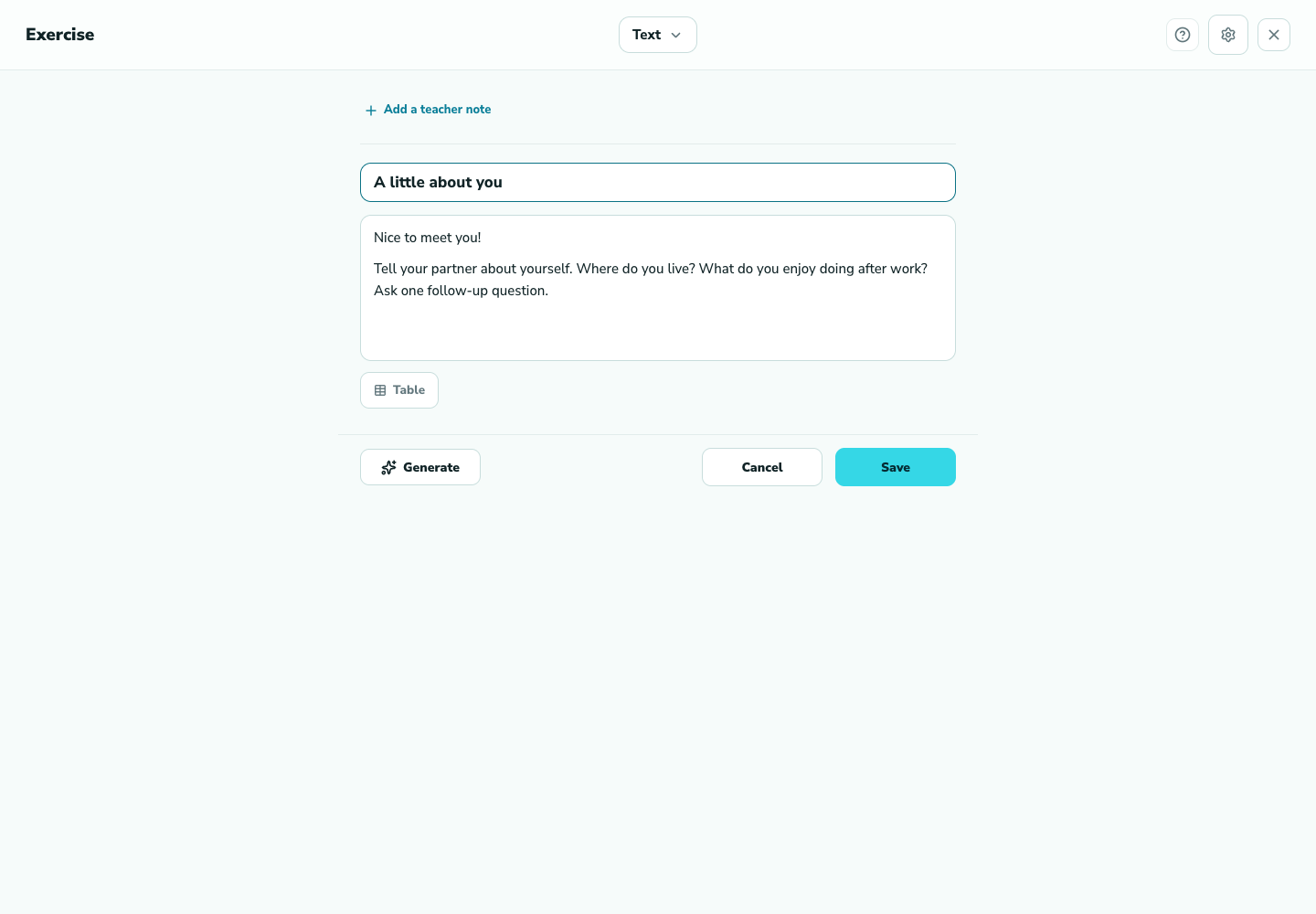
1. Open the exercise editor and find the button Describe the task and attach files
In the “Generate with AI” window write what you need, for example “5 questions on the Present Simple” or “a reading text about travel”. The description is required; without it the button stays disabled. Files such as a textbook page can be attached with the button or dragged into the window. For picture-card templates a word list or a topic is enough: the AI builds up to 10 cards with pictures, which takes about a minute.
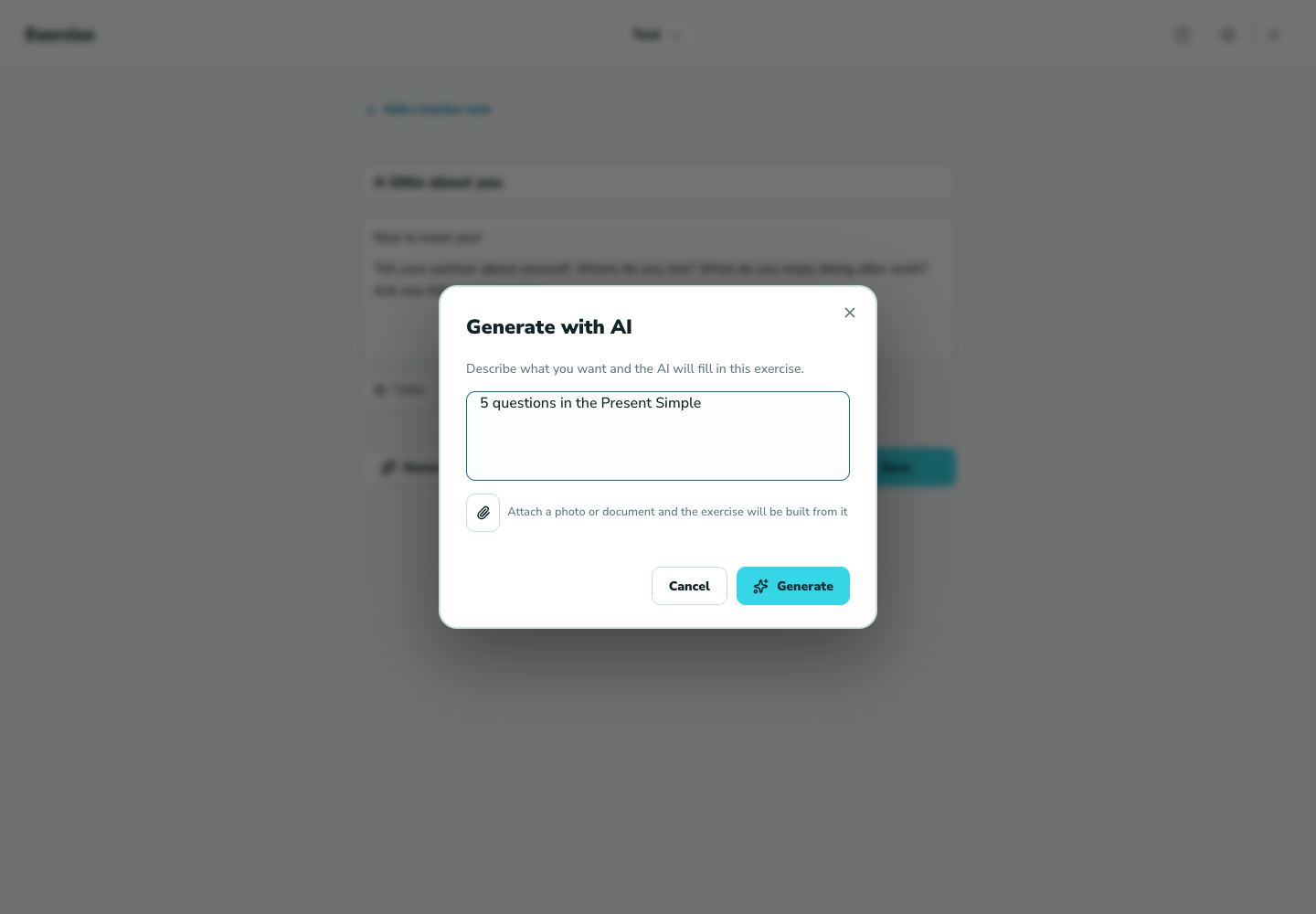
2. Describe the task and attach files Run generation and wait for the draft
Click Generate. Before starting, the app checks AI access on your account; confirm the operation if asked. While generation runs you see a progress bar and the buttons are locked. If something goes wrong an error message appears in the window: try again or refine the description.
Review the draft and save
The finished draft is placed into the editor fields but is not saved yet. Read the text, fix wording and answers, remove anything unnecessary. The exercise appears in the lesson only after you click Save.
Good to know
Troubleshooting
The Generate button is disabled
Check that the description is filled in and that attached files have finished uploading. The button is also locked while a previous generation is running.
An error message appeared
The app cancels the authorization of that operation. Try again; if the error repeats, contact support with the template and your description. You can check the operation history in the billing section.
Generation won't start: access or balance needed
Open the billing section: it shows whether AI access is active, your remaining coins and when the daily allowance resets. If top-up is available for your account, the Top up button is there too.