For everyone
Microphone, camera, or sound is not working
Check site permissions, selected devices, and the call connection. Each participant needs to check their own device.
On this page
How to do it
Check that you joined the call
Open the right class room. If the join-call action is visible, connect. Signing in or opening the room does not by itself join the call.
Allow microphone and camera access
If the browser reports a block, open the site permissions next to the address. Allow the microphone and camera, then reconnect.
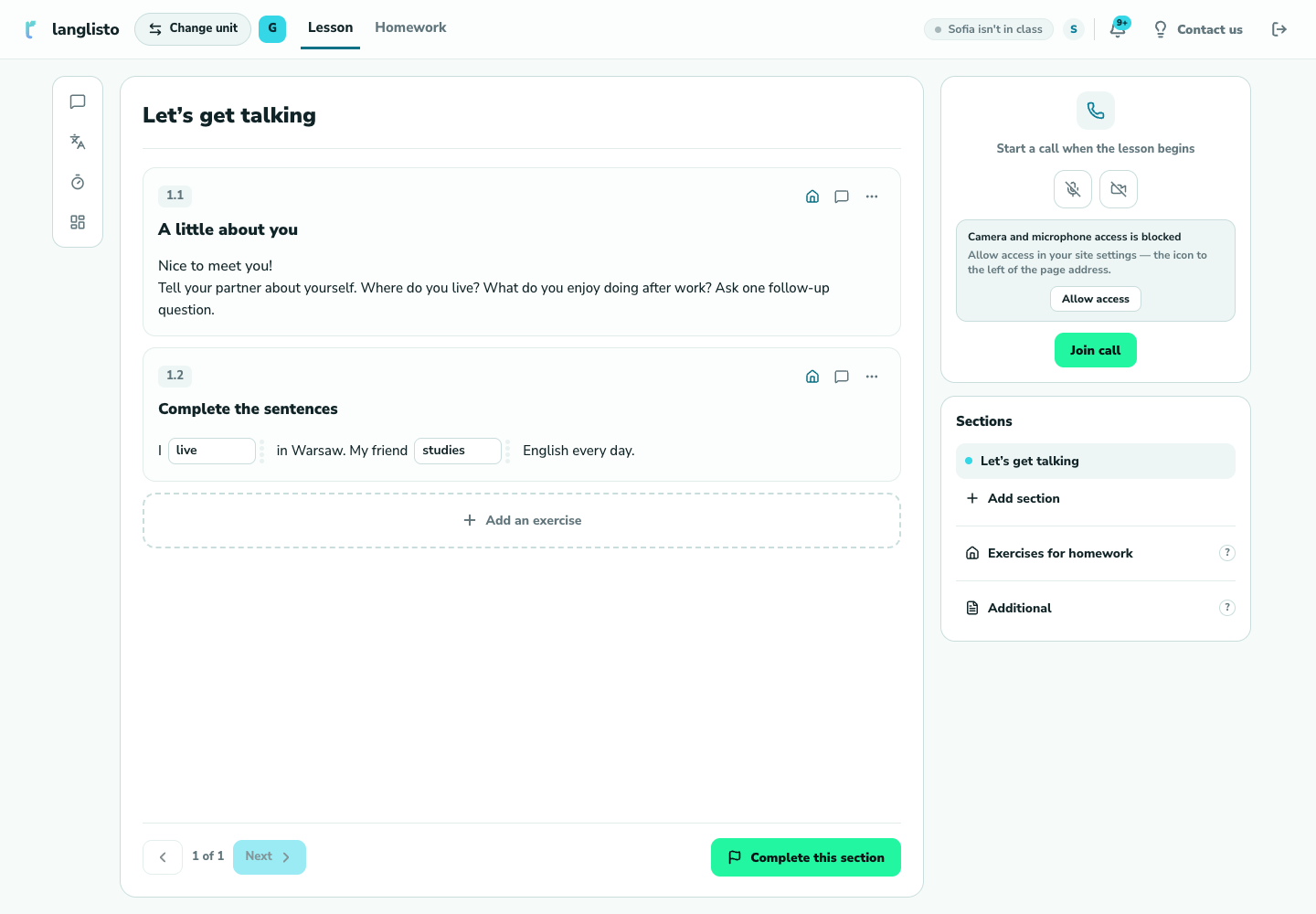
2. Allow microphone and camera access Check devices and volume
Make sure the microphone is not muted, the correct headphones or speakers are selected, and the volume is audible. Check the browser’s microphone and camera permissions in system settings too.
Identify which side has the problem
Check who cannot hear or see whom. If the issue persists, tell support your browser, device, and the approximate time you tried.
Good to know
Troubleshooting
There is an echo
Try headphones. If two nearby devices are in the same call, keep microphone and sound enabled on only one.
The permission button did not help
Also check computer or phone system permissions and whether another application is using the device.