For teachers
Student access to a marathon
Who sees which marathon lessons and when: adding students, the entry link, the study mode, opening a single lesson by hand, freezing and course dates.
On this page
How to do it
Add students
On the “Students” tab click “Add a student” and enter an email. If the student isn't on the platform yet, an account is created and an invitation with a sign-in link is emailed. Students you already work with can be added via “Choose from my students” → “Add to class”.
Or enable the entry link
In the “Entry link” block switch on “Join by link” and send the link to students. Under “Where to go after signing in” choose “Classes page” or “This class or marathon”. “Replace link” invalidates the old one, “Disable” closes joining; students who already joined keep their access.
Control when lessons open
“Settings” → “Passage” → “Study mode”. In “Open” all tasks are available at once, in “Closed” the teacher opens them manually, and the other modes open the next lesson by interval, weekday, completion or review. A locked lesson shows the student “This lesson isn't open yet — It will unlock according to the course schedule.”
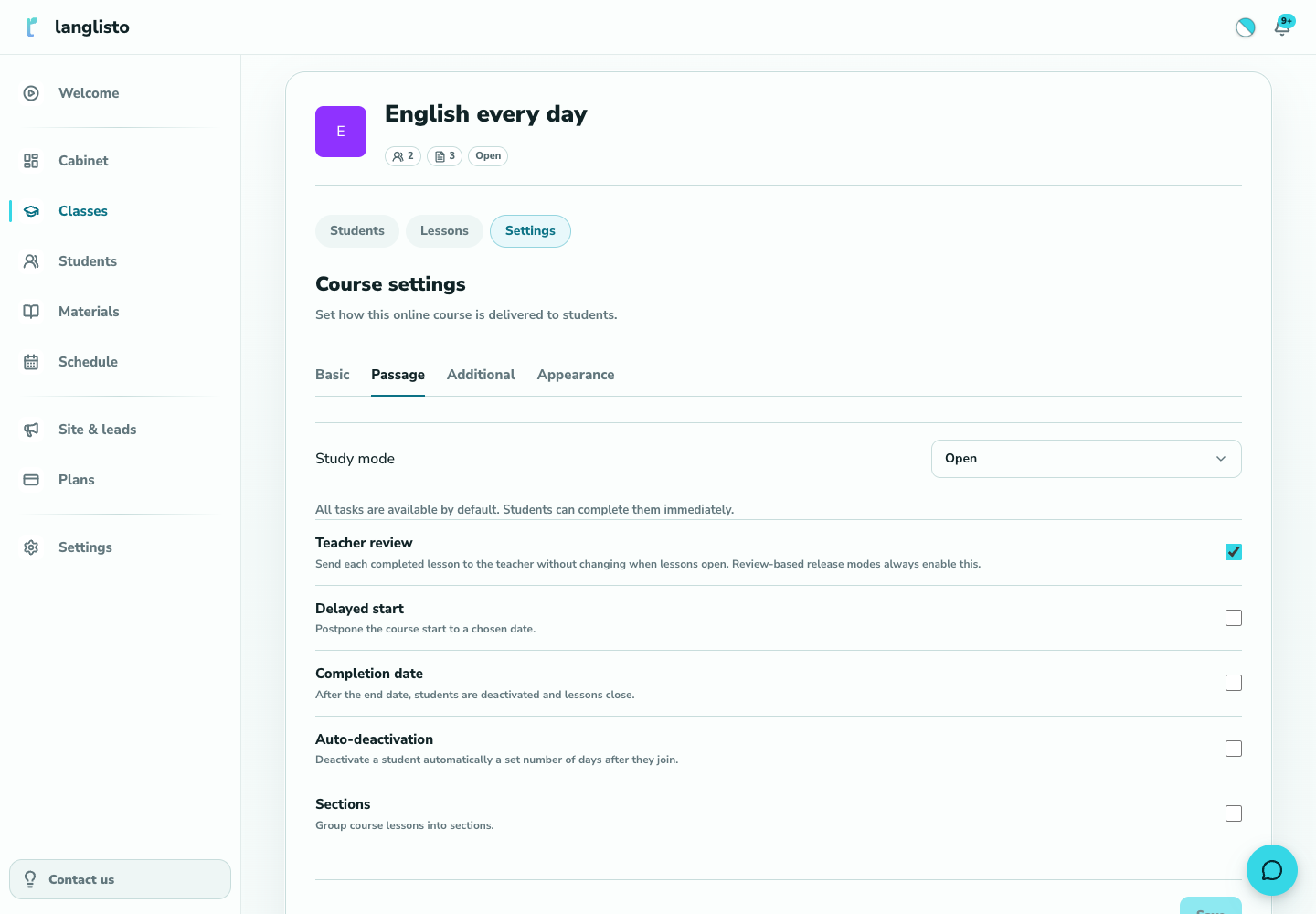
3. Control when lessons open Open a lesson for one student
In the student's row click “Progress”. In the lesson's “Lesson actions” menu choose “Open access to the lesson” or “Close access to the lesson”. The option is offered in every mode except “Open”, and only while the course is running by its dates.
Restrict access
“Freeze” in the student's menu closes access to the class while keeping all progress; “Reactivate” brings them back. “Remove student” takes them out of the class. “Delayed start”, “Completion date” and “Auto-deactivation” on the “Passage” tab close lessons by date: after the end date students are deactivated and lessons close.
Good to know
Troubleshooting
The lesson menu has no “Open access to the lesson” item
Either the marathon is in “Open” mode, where everything is already open, or the course dates keep lessons closed: a note above the list says “The course dates keep every lesson closed right now…”. Check “Delayed start” and “Completion date”.
A student says a lesson will not open
Check the study mode, the course dates and whether the student is frozen. To skip the queue, open the lesson by hand via “Progress” → “Open access to the lesson”.